

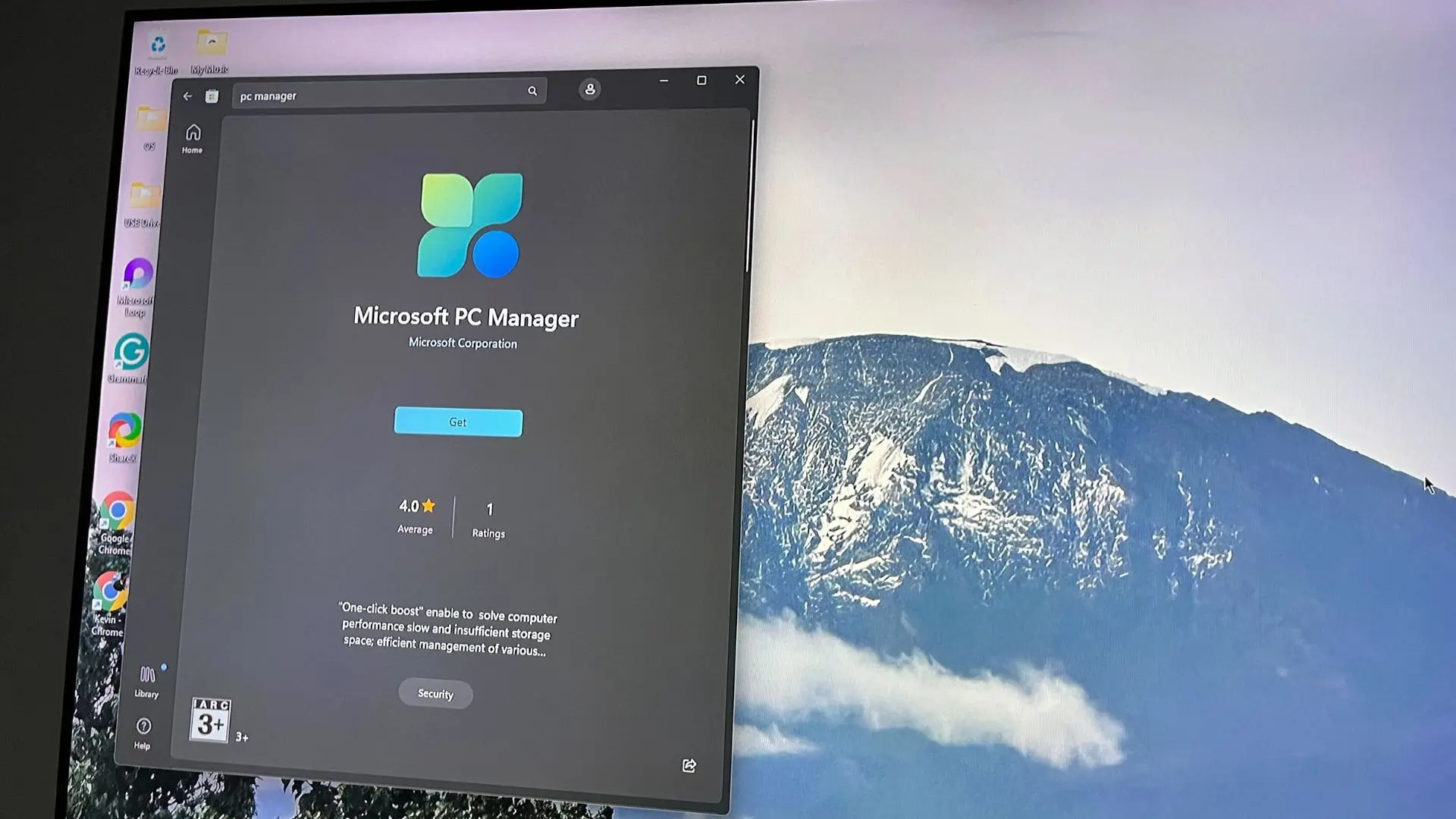
When I first heard about Microsoft's PC Manager, I was intrigued. For years, Windows users have relied on third-party utilities like CCleaner, Advanced SystemCare, or even built-in tools like Disk Cleanup and Task Manager to keep their systems running smoothly. But here was a first-party solution from Microsoft itself, promising to simplify system optimization. There was just one catch: it was region-locked, available only in a handful of countries. As a tech journalist based in the United States, I was initially unable to download it. After some creative maneuvering—using a VPN to spoof my location to China—I finally managed to install and test it. And now, after several weeks of use, I find myself wishing that everyone could access this tool. Here's why.
What is Microsoft PC Manager?
Microsoft PC Manager is a free utility that aims to consolidate many of Windows' maintenance and optimization features into one easy-to-use dashboard. Think of it as a cleaner, more modern version of the old Windows 7 Performance Information and Tools panel, but with additional functionality. The app includes tools for cleaning temporary files, managing startup programs, checking for system updates, and even a built-in antivirus that leverages Windows Defender's engine. What sets it apart from third-party alternatives is its seamless integration with Windows—the tool can natively interact with Windows' own services without the need for background processes that slow down the system.
Why is it region-locked?
Microsoft has never officially explained why PC Manager is restricted to certain regions like China, the United States (only through the Microsoft Store in Chinese language), and a few others. Speculation abounds: perhaps Microsoft is testing the app in markets where third-party system cleaners are particularly popular, or maybe there are regulatory or partnership considerations at play. In China, for example, many users rely on tools like 360 Total Security and Tencent PC Manager—Microsoft's offering could be a direct competitor. By restricting availability, Microsoft can gauge reception and refine the app before rolling it out globally. That said, the region lock feels arbitrary and frustrating, especially given how well the tool works.
A hands-on experience: features worth praising
Upon launching PC Manager, I was greeted by a clean, minimalistic interface. The main dashboard shows your PC's health status, CPU and memory usage, and a button to perform a one-click boost. The 'Boost' feature aggressively clears memory—something I normally avoid, but PC Manager's implementation is surprisingly smart. It doesn't kill critical processes; instead, it focuses on releasing memory held by inactive applications and background services that aren't essential. In my testing, I saw a noticeable improvement in responsiveness when running multiple browser tabs and applications.
The storage management section is another standout. Unlike Windows' built-in Storage Sense, which can be slow and cumbersome, PC Manager scans your drives quickly and presents a clear breakdown of temporary files, large files, and duplicates. You can select categories to clean with a single click. The tool even integrates with the Recycle Bin and can automatically remove items older than 30 days. During my tests, it freed up nearly 8 GB of space on my main drive without deleting anything important.
Startup management is another area where PC Manager excels. Instead of the basic Task Manager startup tab, PC Manager provides more context—it shows the impact of each startup program and even suggests which ones you can safely disable. I've used this to speed up my boot time by nearly 10 seconds. The app also includes a 'Process Manager' that lists all running processes with color-coded resource usage, making it easy to spot memory hogs.
Perhaps the most impressive feature is the 'Windows Update' management. PC Manager can force-check for updates, install pending updates, and even restart your PC to finish installation—all from within the app. This eliminates the need to navigate through Settings and get interrupted by those "We're installing updates" notifications. For users who like to stay on top of patches, this is a huge convenience.
What about security?
PC Manager includes a basic antivirus scanner that uses Windows Defender APIs. It's not as full-featured as Defender itself—for example, it doesn't offer real-time protection customization or cloud-delivered protection settings. But for a quick manual scan, it works well. The app also includes a network protection module that checks your Wi-Fi security and DNS configuration. It's a nice addition, though power users might find it too simplistic.
How does it compare to third-party tools?
There's no shortage of system optimization tools on Windows, both free and paid. For years, I've been a loyal user of CCleaner for its cleaning capabilities, but CCleaner has become increasingly ad-riddled and pushy with its Pro version upsells. Similarly, alternatives like Advanced SystemCare often bundle toolbars or try to install other software. Microsoft PC Manager, being a first-party tool, has none of that. It respects your system and doesn't try to upsell you. It's also more transparent about what it does—each action can be reviewed before execution. In contrast, many third-party cleaners use aggressive language like "Boost PC Now!" and obscure the exact changes they'll make.
Of course, PC Manager isn't as comprehensive as some specialized tools. It lacks a registry cleaner (which, to be fair, is largely unnecessary and can be dangerous), a disk defragmenter (Windows handles that automatically), or advanced privacy settings. But for 90% of home users, PC Manager covers all the important bases.
The frustration of region locking
Using PC Manager has made me acutely aware of the arbitrary nature of software region locking. In an age of global internet access, restricting a free, useful tool to a few countries feels like a step backward. I spoke with several colleagues in Europe and Australia who had never heard of the app, and when I described it, they were eager to try it—only to be blocked. Workarounds like VPNs are possible but violate Microsoft's terms of service, and many users don't have the technical know-how to set up such a workaround. The result is that millions of Windows users are missing out on a tool that could improve their daily computing experience.
There's also the question of trust. Microsoft has a long history of bundling features into Windows—sometimes controversially, like with the integration of OneDrive or Edge. But PC Manager is a rare example of a first-party tool that genuinely helps users take control of their system without pushing them into Microsoft's ecosystem. It doesn't even force you to sign in with a Microsoft account. By keeping it region-locked, Microsoft is effectively telling users in excluded regions that they aren't important enough to receive this tool.
Who should use PC Manager?
Honestly, almost any Windows user would benefit from PC Manager. Beginners will appreciate the simple dashboard and one-click optimization, while intermediate users can dive into the individual tools to fine-tune their system. Even experts might find it useful as a quick checkup tool. The app is lightweight—it uses barely any resources when minimized to the system tray. It's also updated regularly through the Microsoft Store, meaning you always get the latest features without having to manually download new versions.
If you have a habit of installing many programs or downloading files, the cleaning features alone are worth the download. PC Manager even includes a "Large Files Finder" that identifies files over 1 GB—helpful for freeing up space on smaller SSDs. And for those who dislike Windows 11's new design inconsistencies, PC Manager has a clean, uniform interface that feels like a breath of fresh air.
Final notes on availability
At the time of writing, Microsoft PC Manager is available in China as a primary market, with limited English support in the US and a few other regions. You can download it from the official Microsoft website or the Microsoft Store, but if you're outside these regions, you may see a message saying the app is not available. Microsoft has not announced a global release timeline. However, given the positive reception from users who have managed to try it, it's likely only a matter of time before the company expands availability. Until then, users in restricted regions will have to wait or resort to unofficial methods—which is a shame, because this is a tool that deserves to be in everyone's hands.
Source: Windows Central News